
Key takeaways
- An app's privacy comes down to four things you can check: permissions, trackers, background data and background sensor use.
- The Play Store Data safety label is the developer's own statement - useful, but not proof.
- Android shows each signal in a different place, so checking one app by hand takes several minutes.
- Privacy Prime's App Report Cards combine all four into an A-F grade for every installed app, on-device.
"Is this app safe?" usually means two different questions. One is security: is it malware? Google Play Protect handles most of that. The other is privacy: how much does this perfectly legitimate app collect about me, and who does it share it with? That second question is harder, because the answer is spread across several screens. Here is how to check it, signal by signal.
1. Check the permissions it actually holds
Open Settings › Apps › [the app] › Permissions. Look at what is set to Allowed, not just what the app asked for. The ones that matter most are camera, microphone, location (especially "Allow all the time"), contacts, SMS, call logs, body sensors and nearby devices. Ask a simple question for each: does this feature need it? A flashlight app with location access, or a calculator with contacts, is a red flag. Our guide to dangerous Android permissions explains what each one exposes.
2. Find out which trackers are inside it
Most free apps are paid for by software development kits (SDKs) from ad networks, attribution companies and analytics firms. Some are harmless crash reporters. Others, such as attribution and data-broker SDKs, exist to identify you across apps. Permissions don't reveal any of this, because trackers use the permissions the app already has. You can look an app up on Exodus Privacy, or scan your installed apps on-device. Our explainer on how ad trackers work covers the different kinds.
3. See how much data it sends in the background
An app that sends hundreds of megabytes while you're not using it is doing something. Android shows this per app under Settings › Apps › [the app] › Mobile data & Wi-Fi (wording varies by phone), split into foreground and background. Comparing apps this way is slow, though. Our guide to which apps use data in the background shows faster ways to rank them.
4. Check background use of the mic, camera and location
Holding a permission is one thing; using it while you're not looking is another. Android's Privacy Dashboard shows the last 24 hours of mic, camera and location access. Background access - use while the app wasn't on screen - is the most important pattern to watch for.
5. Read the Data safety label, with care
Every Play Store listing has a Data safety section saying what the app collects and shares. It's worth reading, but it's written by the developer, and Google doesn't independently verify every claim. If the label says "no data shared" and the app contains three ad-network SDKs, believe the code.
The shortcut: an A-F privacy grade for every app
Doing all five checks for one app takes several minutes. Doing it for the 80-plus apps on a typical phone isn't realistic. That's why we built App Report Cards into Privacy Prime. Every installed app gets a grade from A to F, worked out on your phone from the same four signals:
| Signal | What lowers the grade |
|---|---|
| Sensitive permissions | Each granted sensitive permission, weighted (background location and microphone count more than, say, nearby devices) |
| Trackers | Each tracker found, weighted by risk - data brokers and attribution SDKs cost most, crash reporters least |
| Background data | Sending 20 MB, 100 MB or 500 MB+ in the background over the last 7 days |
| Background sensor use | Using the mic, camera or location in the background in the last 7 days |
| Risky combination | Ad or data-broker trackers in an app that also uses your location in the background |
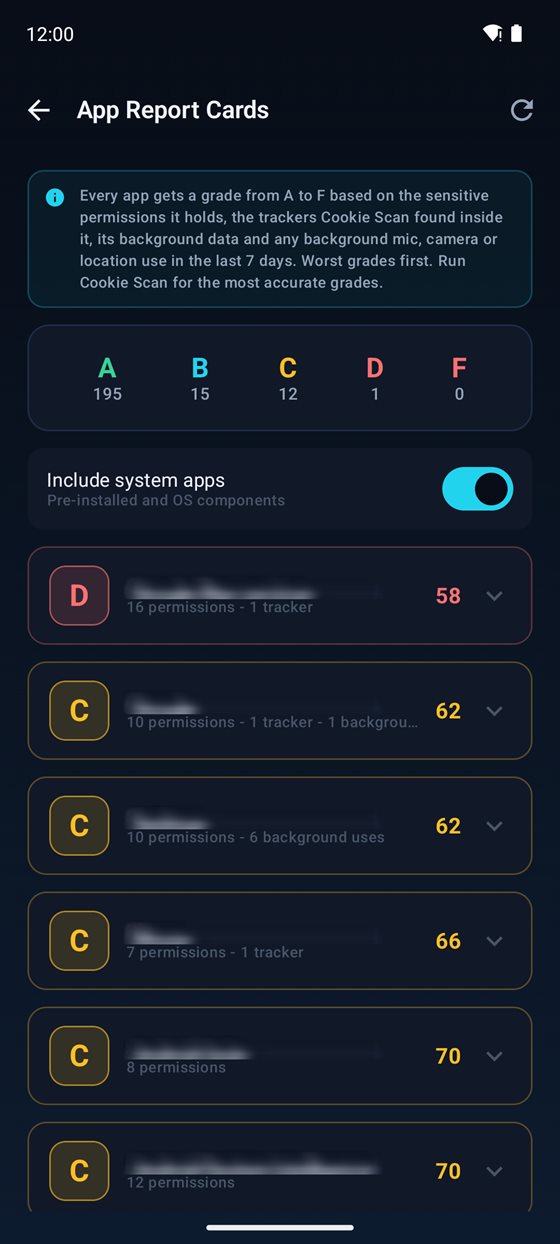
Every app starts at 100. A is 90 or more, B 75 or more, C 60 or more, D 40 or more, and F is below 40. Tap any app to see exactly which factors cost it points, then jump straight to its permission settings to fix what you can. New apps are graded as soon as you install them, so you know what you just added. Nothing is uploaded: grades are calculated on your device from information already on it.
Grade every app on your phone
Privacy Prime gives each installed app an A-F privacy grade from its permissions, trackers, background data and background sensor use - on-device, no account. Grades are visible on the free tier; the full breakdown comes with Standard (7-day free trial).
📲 Get Privacy PrimeWhat to do with a D or F
- Read the breakdown. Is it permissions you can revoke, or trackers baked into the app?
- Revoke what you can. Downgrade location to "only while using", remove mic or camera if the app doesn't need them.
- Restrict background data for apps that send a lot while you're away.
- Look for an alternative. If the grade comes mostly from trackers, a different app (often a paid or open-source one) may do the same job with far fewer.
- Uninstall what you don't use. An app you opened once last year still runs its SDKs.
Frequently asked questions
Is the Google Play Data safety section reliable?
It's a useful starting point, but it's written by the developer and Google doesn't independently verify every claim. Check it against what the app actually does: its permissions, its trackers and its background activity.
How can I see which trackers are inside an Android app?
Tracker SDKs leave recognisable code signatures in the app package. Exodus Privacy publishes reports for many Play Store apps, and Privacy Prime's tracker scan checks the apps on your own phone on-device, listing known ad, attribution and analytics SDKs by risk.
What does an app privacy grade from A to F mean?
In Privacy Prime, every app starts at 100 and loses points for sensitive permissions, trackers, background data and background sensor use. A is 90+, B 75+, C 60+, D 40+ and F below 40. Tap an app to see exactly what cost it points.
Does a bad grade mean an app is malware?
No. It means the app collects or can access a lot. Plenty of legitimate apps score D or F. Use the grade as a prompt to review permissions, not as a malware verdict.